How to Replace Card Printer Ribbon: Step-by-Step Guide
Table of Contents []
- How to Replace a Card Printer Ribbon - A Complete Guide from Plastic Card ID
- Why Ribbon Replacement Is More Than Just a Swap
- Step-by-Step: How to Replace a Card Printer Ribbon
- Ribbon Replacement Across Different Printer Brands
- Ribbon Maintenance Best Practices for Longer Print Quality
- Frequently Asked Questions About Card Printer Ribbon Replacement
- Everything Else You Need for a Complete Card Printing Program - Plastic Card ID
How to Replace a Card Printer Ribbon - A Complete Guide from Plastic Card ID
 Replacing a card printer ribbon sounds straightforward until you're standing there with a half-loaded spool, wondering which direction it feeds and why your test print looks like a watercolor gone wrong. The process is simple once you know it - but the details matter enormously. Whether you're running an Evolis Primacy2 in your HR office or a Zebra unit at a high-traffic event desk, getting ribbon replacement right is the single most impactful thing you can do for print quality.
Plastic Card ID has been supplying card printers and consumables to businesses across the United States for over 25 years, serving more than 100,000 customers who depend on consistent, professional results from their in-house card programs. This guide draws on deep product knowledge across every major brand - Evolis, Fargo, Zebra, and Matica - to walk you through ribbon replacement the right way.
| Ribbon Type | Best For | Typical Card Yield | Compatible Printer Range |
|---|---|---|---|
| YMCKO (Full Color) | Full-color photo ID, membership cards | 250-500 cards/roll | Evolis, Fargo, Zebra, Matica |
| Monochrome (Black) | Text-only, barcodes, high-volume | 1,000-2,500 cards/roll | All desktop and industrial models |
| YMCKOK (Dual Black) | Color black resin text on same side | 200-400 cards/roll | Mid-range and above |
| Specialty/Scratch-off | Loyalty programs, PIN mailers | Varies by application | Select Evolis and Fargo models |
| Lamination Film | Overlay protection on finished cards | 500-1,500 panels/roll | Evolis Primacy2, Agilia, select Fargo |
Why Ribbon Replacement Is More Than Just a Swap
 Here's the thing most people discover the hard way: a card printer ribbon isn't just ink on film. It's a precisely engineered consumable calibrated to your printer's heating elements, transfer timing, and card surface. Using the wrong ribbon - or installing the right one incorrectly - leads to faded prints, color banding, or outright print head damage. That last consequence is expensive. Print heads on mid-range printers cost $150-$400 to replace.
Every ribbon cartridge carries calibration data embedded in its chip or barcode panel. When you load a new ribbon, the printer reads that data to set dye transfer temperatures and panel timing. This is why CPE emphasizes buying OEM or certified compatible ribbons from authorized sources - off-brand, uncertified alternatives may skip that encoding entirely, leaving your printer guessing at settings it should know precisely.
What's Actually Inside a Card Printer Ribbon
A color YMCKO ribbon consists of five sequential panels per card cycle: Yellow (Y), Magenta (M), Cyan (C), black resin (K), and a clear overlay (O). The overlay panel is critical - it seals the dye layers, adds scratch resistance, and enables the crisp laminated look on a finished ID card. Each panel must align perfectly with the card during transfer, which is why panel registration - how the ribbon feeds - matters so much during installation.
Monochrome ribbons are structurally simpler, carrying a single resin or dye layer wound across the full spool. They yield far more cards per roll (sometimes 1,000-2,500 depending on card coverage) and suit high-volume text, barcode, or single-color artwork applications. Schools printing student ID number cards or warehouses running access control systems often run monochrome exclusively for cost efficiency.
Signs Your Ribbon Needs Replacing Now
Don't wait until your printer throws an error code. Some of the most telling signs are subtler: colors that once looked vivid now appear slightly washed, black text that should be crisp starts feathering at the edges, or the printer pauses mid-card and retracts more frequently than usual. These are early-stage ribbon depletion symptoms, and catching them early prevents wasted cards and print head strain.
More obvious signals include the ribbon advance motor straining audibly, the printer LCD displaying a low ribbon or ribbon end warning, or actual physical breaks in the ribbon film. A broken ribbon mid-print isn't just a wasted card - it can leave residual film wrapped around internal rollers if not cleared carefully. The moment you see these signs, have a replacement ribbon ready before you open the cover.
OEM vs. Compatible Ribbons - What Plastic Card ID Recommends
The debate between OEM (original manufacturer) and third-party compatible ribbons is real, and the answer isn't always black and white. For printers still under warranty, OEM ribbons are non-negotiable - manufacturers like Evolis and Fargo explicitly state that using uncertified consumables can void your coverage. Beyond warranty concerns, OEM ribbons are formulated to exact specifications for each printer model, ensuring consistent dye transfer temperatures and panel yields.
Certified compatible ribbons from reputable suppliers can be a cost-effective option for printers out of warranty, particularly for high-volume monochrome applications where the stakes per card are lower. CPE stocks both categories and can guide you toward the right match for your printer model, volume, and budget. The wrong ribbon costs far more in wasted cards and potential hardware damage than any savings on the consumable itself.
Step-by-Step: How to Replace a Card Printer Ribbon
The specific steps vary slightly by printer brand and model, but the fundamental process is consistent across Evolis, Fargo, Zebra, and Matica desktop card printers. Follow this process carefully the first few times, and it becomes second nature within minutes. Always power the printer on before opening it - most card printers perform an automatic ribbon alignment or retension sequence when the cover is closed with a new cartridge installed, and that requires power.
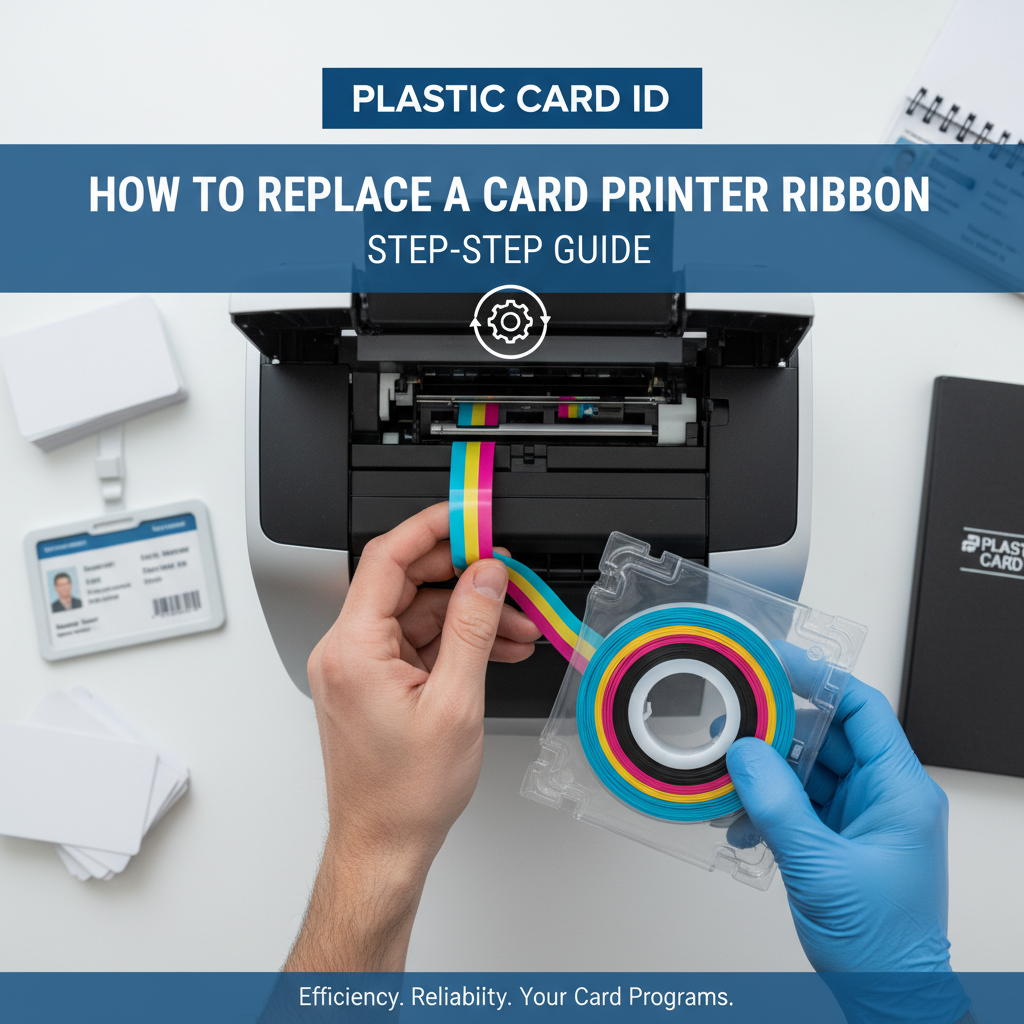
Prepare your workspace before you start. Set the new ribbon nearby, have a lint-free cloth available, and if you're doing scheduled maintenance, now is an ideal time to run a cleaning card through as well. The whole replacement process from start to finish should take under three minutes once you're familiar with your specific model.
Opening the Printer and Removing the Used Ribbon
Press the release button or lever to open the printer cover - on most Evolis models this is a single button on the top or front panel, while Fargo and Zebra units often use a side latch. The print head assembly will lift with the cover or swing away to expose the ribbon cartridge or spools. Do not force the cover if it resists - a card may still be partially loaded, and forcing it can damage the card transport mechanism or the ribbon itself.
Grasp the used ribbon cartridge (on models with cartridge-style loading) or the individual ribbon spools and lift them straight out. On Evolis printers, the ribbon often sits in a dedicated cartridge that snaps out cleanly. On Fargo HDP and DTC models, you'll typically remove the ribbon spool assembly from two spindle posts. Take note of which direction the ribbon feeds - from left to right or right to left - as this varies by model and matters for installing the replacement correctly.
Installing the New Ribbon Correctly
Remove the new ribbon from its packaging and, if it's a cartridge-style unit, simply snap it into the designated slot until you feel or hear it click. For spool-style loading, slide the supply spool onto the appropriate spindle post and thread the ribbon leader across the print head area to the take-up spool. The ribbon should sit taut but not stretched - excessive tension during threading causes panel misalignment on the first print cycle.
Most ribbons have a printed arrow or label indicating the correct feed direction. On YMCKO ribbons, the yellow panel should be first in the feed path. If you load the ribbon backward, the printer will either throw an error immediately (on smart-chip ribbons) or produce a series of unusable cards with inverted color sequences before you catch the mistake. Take two extra seconds to verify orientation before closing the cover.
Closing the Printer and Running a Test Print
Once the ribbon is seated, close the printer cover firmly. You should hear a positive click or latch engagement. On most models, the printer will automatically perform a ribbon advance to find the first panel - you'll hear a brief motor sequence and may see the ribbon move slightly through any observation window. This self-calibration step is normal and confirms the ribbon is loaded and readable.
Run a test print immediately. Most card printers include a built-in test card function accessible via the front panel button or the printer utility software. On Evolis models, holding the print button for three seconds typically triggers a test card. Examine the output under good lighting: colors should be saturated and even, text should have clean edges, and the overlay panel should produce a uniform sheen across the card surface. If any issues appear, re-open and verify ribbon seating before calling for support.
Need help selecting the right replacement ribbon for your printer model? Call Plastic Card ID at 800.835.7919 and our team will match you with the exact consumable you need.
Ribbon Replacement Across Different Printer Brands
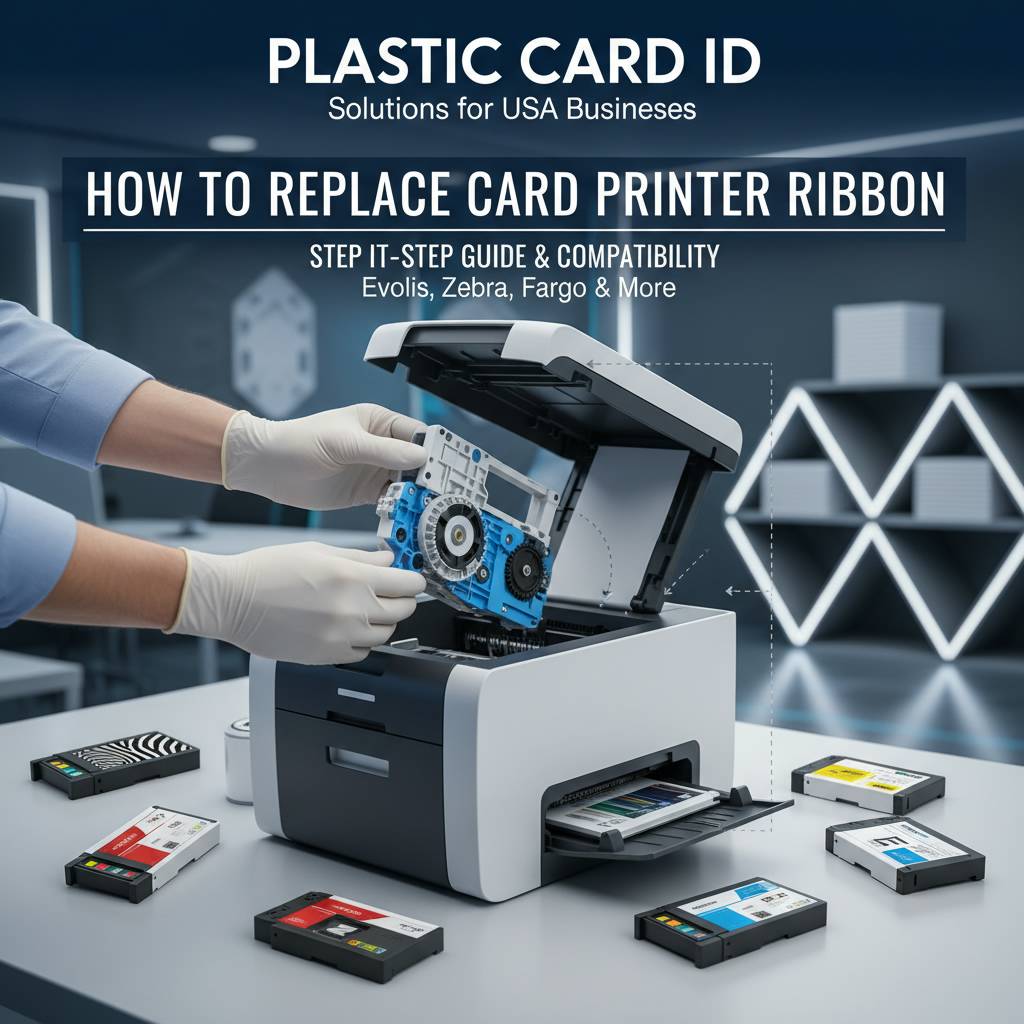 While the fundamentals are consistent, each major brand has its own mechanical personality. Knowing your specific printer's quirks saves time and prevents costly mistakes. Evolis printers, for instance, use a proprietary cartridge system on most models that makes ribbon swaps exceptionally fast - a deliberate design choice for office environments where non-technical staff handle consumable changes. Fargo and Zebra printers, oriented more toward security ID environments, often have more involved loading procedures to accommodate retransfer film and ribbon simultaneously.
Matica printers, particularly the Event Printer designed for high-speed on-site badge production, have a different workflow entirely - ribbons and card stock are often managed through a side-loading module optimized for rapid refills between printing bursts at conferences or large events. Understanding these differences isn't just trivia - it directly affects how you plan your consumable inventory and staff training.
Evolis Printer Ribbon Replacement
Evolis has built its desktop lineup - from the entry-level Badgy200 to the professional Primacy2 and premium Agilia - around ease of use. The ribbon cartridge on most Evolis models is a self-contained unit: ribbon supply, take-up spool, and cleaning roller are all integrated. This all-in-one design means you can't accidentally load the ribbon backward on most Evolis cartridges - the cartridge physically only fits one way.
The Evolis Agilia, which targets organizations demanding edge-to-edge premium output, uses a slightly larger ribbon format to support its superior color gamut. Ribbons for the Agilia are not interchangeable with those for the Zenius or Primacy2 despite sharing the Evolis brand, so ordering the correct part number matters. CPE maintains inventory of the full Evolis ribbon range and can cross-reference your printer serial number to confirm compatibility.
Fargo and Zebra Printer Ribbon Replacement
Fargo printers, particularly the HDP series, use a retransfer printing process where the ribbon first prints onto a clear film before that film is thermally fused to the card. This means you're actually managing two consumables simultaneously - a color ribbon and a retransfer film roll - during a replacement cycle. The retransfer process delivers superior edge-to-edge print quality and works on uneven card surfaces, which is why security-focused ID programs favor it for access control and government credentials.
Zebra card printers, popular in enterprise and government settings, use a loading procedure that emphasizes security and ribbon protection. Many Zebra models feature a ribbon locking mechanism that prevents unauthorized ribbon removal during an active print job - a feature valued in environments where card personalization data security is paramount. Replacing the ribbon on a Zebra requires releasing this lock via the control panel before the cover will open, a step often missed by first-time users.
Contact Plastic Card ID for Brand-Specific Ribbon Support
Every printer brand has model-specific ribbon part numbers, and using even a slightly wrong specification - say, a 250-card YMCKO ribbon in a printer calibrated for a 500-card roll - can produce calibration warnings or premature depletion errors. Getting the exact match isn't optional; it's essential for reliable operation. The team at CPE has the product knowledge to verify compatibility across Evolis, Fargo, Zebra, and Matica models by serial number or model name.
Reach out before ordering if you're unsure. A quick confirmation call prevents the frustration of receiving a ribbon that physically fits but doesn't perform correctly in your specific printer generation. Plastic Card ID stocks ribbons for current and legacy printer models, so even if you're running an older unit, there's a strong chance the right consumable is already in inventory and ready to ship.
Ribbon Maintenance Best Practices for Longer Print Quality
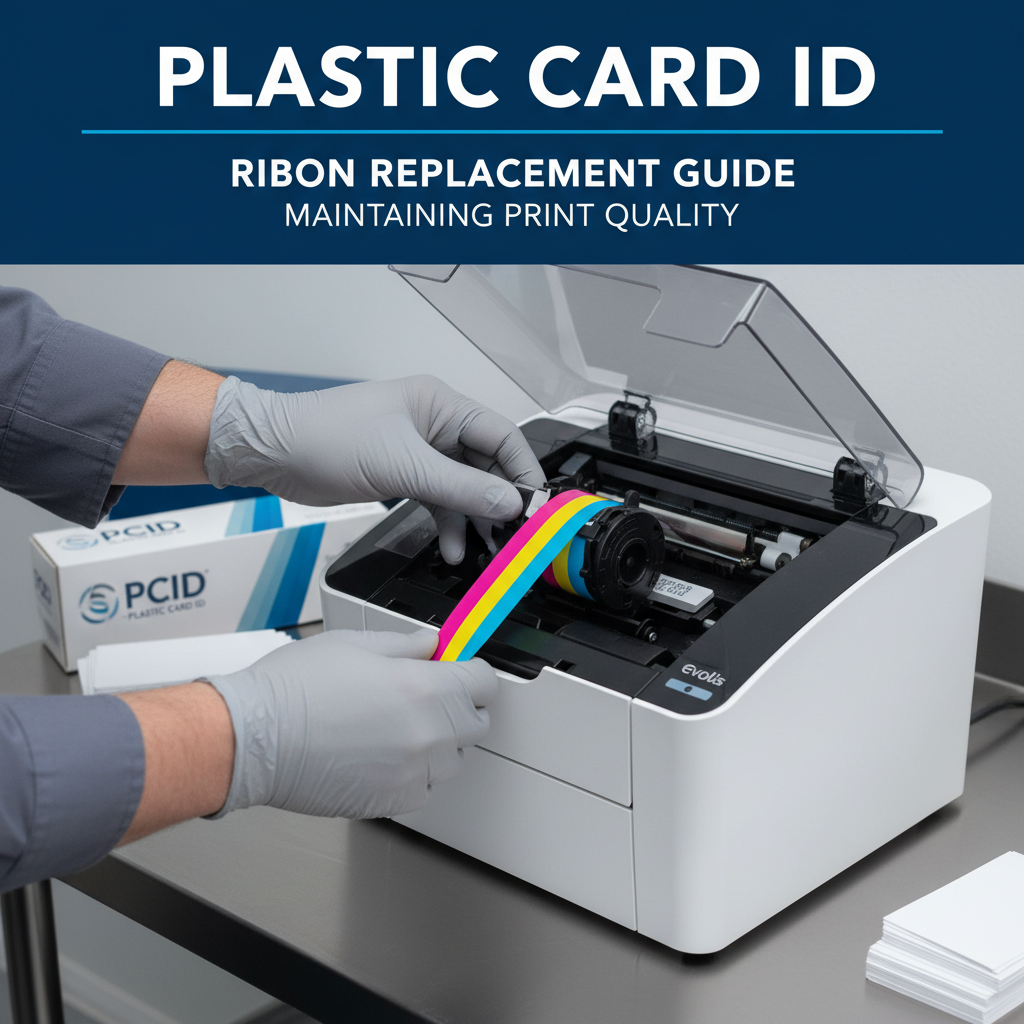 Replacing a ribbon correctly is half the equation. How you handle, store, and manage ribbons between replacements directly affects the quality and consistency of every card you print. A ribbon stored improperly can degrade before it's even loaded, resulting in color inconsistencies that look like printer problems but are actually consumable problems - a distinction that wastes time in unnecessary troubleshooting.
Best practice starts at the point of storage. Ribbons should be kept in their original sealed packaging until the moment of installation, stored in a cool, dry location away from direct sunlight and humidity. Dye-based ribbon panels are sensitive to heat and moisture in ways that aren't visible until the ribbon is on the printer and producing cards.
Handling Ribbons Without Damaging Them
Oils from your fingertips are a genuine enemy of ribbon performance. The dye panels on a YMCKO ribbon are delicate enough that fingerprint oils can disrupt dye transfer in that precise spot, producing a small light or dark artifact on the printed card. Always handle ribbons by the cartridge housing or spool edges - never touch the ribbon film surface directly. Keep the ribbon away from dusty environments during installation; a particle of dust between the ribbon and print head during thermal transfer can score a fine line across every card in a run.
If you accidentally touch the ribbon film, do not try to clean it with a cloth - you're more likely to spread contamination than remove it. Instead, advance the ribbon slightly past the affected area (using the printer's manual ribbon advance function if available) to move the touched section to the take-up spool, bypassing it entirely. This wastes a fraction of the ribbon but is far better than running bad cards or risking print head deposits.
Pairing Ribbon Replacement with Routine Cleaning
- Run a cleaning card every time you replace a ribbon - this removes dust, card debris, and residual dye deposits from the transport rollers and print head area.
- Use only manufacturer-approved cleaning kits; generic isopropyl wipes can damage print head coatings and void warranties.
- Clean the card input hopper regularly - accumulated dust here migrates directly to the ribbon and print head during operation.
- Check the cleaning roller (integrated into most Evolis cartridges) and replace it on schedule, not just when visually dirty.
- Log your cleaning activity and ribbon replacement dates to identify patterns - a ribbon lasting fewer cards than its rated yield often signals a maintenance deficit rather than a bad ribbon.
Pairing ribbon replacement with a cleaning cycle is a professional habit that pays dividends in reduced print head wear and consistently high card quality. Most manufacturers recommend a cleaning cycle every time a ribbon is changed as the minimum maintenance baseline. CPE supplies complete cleaning kits for all major printer brands alongside ribbons, so you can maintain both in a single order.
Inventory Management for Ribbon Supplies
Running out of ribbon in the middle of a card production run is an entirely avoidable problem - yet it happens constantly in organizations that manage consumables reactively rather than proactively. Establish a reorder threshold based on your monthly card volume. If you print 500 cards per month and your YMCKO ribbon yields 500 cards per roll, never let your inventory drop below two rolls before reordering. Lead times, even from a well-stocked supplier like Plastic Card ID, can add days to your production schedule if you wait until you're out.
Track ribbon yields against rated specifications. If a 500-card ribbon is consistently yielding only 350-380 cards, that's diagnostic information. It could indicate your card designs are running high-coverage imagery that consumes more dye per panel, or it could point to a print head alignment issue causing double transfers. Ribbon yield data is a simple but powerful indicator of your printer's mechanical health.
Frequently Asked Questions About Card Printer Ribbon Replacement
After serving more than 100,000 customers across industries, Plastic Card ID has fielded a lot of questions about ribbon replacement. The questions below come from real customers across a range of applications - from school ID programs to hotel key card operations to corporate access control - and the answers reflect practical, field-tested guidance rather than generic manufacturer talking points.

Can I Use a Partially Used Ribbon After Removing It?
Yes, in most cases. If you remove a partially used ribbon because you're switching card designs or temporarily shutting down the printer, the remaining panels on that ribbon are still usable provided the ribbon hasn't been damaged during removal. Store the partially used ribbon in a clean, sealed bag away from light and humidity, and reinstall it carefully, making sure to advance it to the correct panel position before printing. Most printers will automatically re-index to the next usable panel on a re-loaded ribbon.
However, there's a practical caveat: partially used ribbons that have been stored loosely, exposed to dust, or handled carelessly will often produce quality defects that ruin cards. If the ribbon was in heavy use before removal and shows any wrinkling or edge damage, it's safer to discard it than risk a run of bad output. The cost of a fresh ribbon is trivially small compared to reprinting a batch of cards or troubleshooting print artifacts.
Why Does My New Ribbon Produce a Calibration Error?
Calibration errors on a new ribbon installation almost always trace back to one of three causes: the ribbon is not the correct part number for that printer model, the ribbon's built-in chip or panel sensor barcode is damaged, or the ribbon wasn't seated completely in the cartridge slot or spindle. Re-open the printer, remove the ribbon, and verify the part number against your printer's documentation before assuming a hardware fault.
On smart-chip ribbon systems (used by Evolis and some Fargo models), a dirty or oxidized chip contact on the printer can also cause read errors on a perfectly good ribbon. Clean the chip contact area with a dry lint-free swab and retry installation. If the error persists with a confirmed correct ribbon, contact Plastic Card ID - this can indicate a printer sensor issue requiring service attention. Reach us at 800.835.7919 for diagnostic support.
How Do I Know Which Ribbon Is Right for My Printer?
Start with your printer model number, found on the label on the underside or rear of the unit, and cross-reference it against the ribbon compatibility list in your printer's documentation. Most manufacturers use distinct ribbon part numbers for each model line even within the same brand - the Evolis Badgy200 and the Evolis Primacy2, for example, use entirely different ribbon cartridges despite both being Evolis products. Buying by model name alone, without the specific part number, is a common and easily avoided mistake.
If you've misplaced your documentation or are purchasing ribbons for a printer you inherited from a previous operator, CPE can identify the correct ribbon by printer model name or serial number. Our team maintains a comprehensive cross-reference database covering current and legacy models across Evolis, Fargo, Zebra, and Matica, so getting the right match is straightforward even for older or less common configurations.
Everything Else You Need for a Complete Card Printing Program - Plastic Card ID
 Ribbons are essential, but they're one component in a broader card printing operation. Plastic Card ID supplies the complete ecosystem - printers, ribbons, cleaning kits, lamination modules, encoding upgrades for magnetic stripe and smart chip, input hoppers for high-volume runs, and card carriers and sleeves for finished card protection. Whatever your organization prints - employee ID cards, membership cards, loyalty programs, access control credentials, student IDs, hotel key cards, or event badges - the right combination of hardware and consumables makes the difference between a card printing program that strains your staff and one that runs reliably day after day.
In-house card printing gives you capabilities that outside vendors simply cannot match: print on demand in minutes rather than days, personalize every card individually, encode magnetic stripes or smart chips in the same pass, and eliminate lead times entirely. Control over your card production is control over your operations - and with the right printer, ribbons, and support from a supplier who knows this industry deeply, that control is fully within reach.
Printers for Every Production Volume
The Evolis Badgy200 handles organizations printing fewer than 1,000 cards annually - a compact, affordable entry point for small offices, clubs, or seasonal programs. Step up to the Evolis Zenius or Primacy2 for mid-range volumes of 1,000-6,000 cards per month, with dual-sided printing and magnetic stripe encoding options available. For the highest-quality edge-to-edge color output, the Evolis Agilia represents the premium choice in the desktop category. Fargo and Zebra printers round out the lineup for security-centric ID programs, while the Matica Event Printer delivers on-site high-speed badge production for conferences and large events.
Selecting the right printer for your volume and application isn't just about budget - it's about matching the printer's duty cycle, feature set, and consumable costs to your specific operational reality. Plastic Card ID can help you model the total cost of ownership across models before you invest, factoring in ribbon costs, maintenance cycles, and expected card volumes over a three-to-five year horizon.
Accessories and Supplies That Complete Your Setup
Beyond ribbons, a professional card printing program often requires lamination modules for overlay protection on high-security or high-durability cards, encoding upgrades to add magnetic stripe or smart chip writing capability to a base printer model, and higher-capacity input hoppers to reduce operator intervention during long print runs. Card carriers and protective sleeves extend the usable life of finished cards in field use. None of these components are afterthoughts - they're what separates a card program that works well from one that barely functions.
CPE stocks this full range of accessories and consumables, and our team is equipped to advise on which additions make sense for your specific printer model and use case. Whether you're expanding an existing program or building a new one from scratch, we're the single-source supplier that covers hardware, consumables, and ongoing support across the full lifecycle of your card printing operation.
Ready to stock up on ribbons, accessories, or explore a new card printer? Contact Plastic Card ID today at 800.835.7919 - our experts are ready to help you get exactly what your program needs.
Previous Page