Card Printer Troubleshooting Common Issues: Quick Fix Guide
Table of Contents []
- Your Card Printer Is Acting Up - Plastic Card ID Has the Answers
- Print Quality Problems: Streaks, Fading, and Blotchy Output
- Card Jams and Feed Problems: When Cards Refuse to Cooperate
- Ribbon Breaks and Encoder Failures: The Specialty Consumable Problems
- Driver and Connectivity Problems: When the Computer Can't See the Printer
- Lamination and Overlay Problems: Protecting Cards That Won't Stay Protected
- Preventive Maintenance: Avoiding Problems Before They Start
- Get Your Card Program Back on Track With Plastic Card ID
Your Card Printer Is Acting Up - Plastic Card ID Has the Answers
 Something's wrong. The printer that was humming along perfectly last Tuesday is now producing streaky badges, rejecting cards, or - worst of all - sitting completely silent when you hit print. Card printer troubleshooting doesn't have to spiral into a crisis, but only if you know what you're looking at. Whether you're running an Evolis, Fargo, Zebra, or Matica machine, the symptoms usually point to a manageable set of root causes.
At Plastic Card ID, we've spent over 25 years watching businesses navigate these exact moments of frustration. Our team has fielded calls from HR managers standing over a broken ID printer with a line of new hires waiting, from university administrators mid-semester registration, from hotel operations staff unable to encode a single key card. We know how urgent this gets - and we know what fixes it.
This guide tackles the most common card printer problems head-on: what causes them, how to diagnose them yourself, and when it's time to reach out for professional support. CPE carries not just printers but every ribbon, cleaning kit, and replacement component you'll need to get back up and running fast.
| Symptom | Likely Cause | First Step |
|---|---|---|
| Faded or streaky print | Dirty printhead or worn ribbon | Run cleaning cycle |
| Card jams frequently | Dirty rollers or wrong card thickness | Clean rollers, verify card specs |
| Ribbon breaks mid-print | Expired ribbon or humidity damage | Replace ribbon, check storage conditions |
| Printer not recognized by PC | Driver conflict or USB fault | Reinstall driver, try different USB port |
| Encoding errors on mag stripe | Wrong track selected or dirty encoder | Check software settings, clean encoder |
| Lamination bubbles or peeling | Laminator temperature or card surface issue | Adjust temperature, clean card surface |
Print Quality Problems: Streaks, Fading, and Blotchy Output
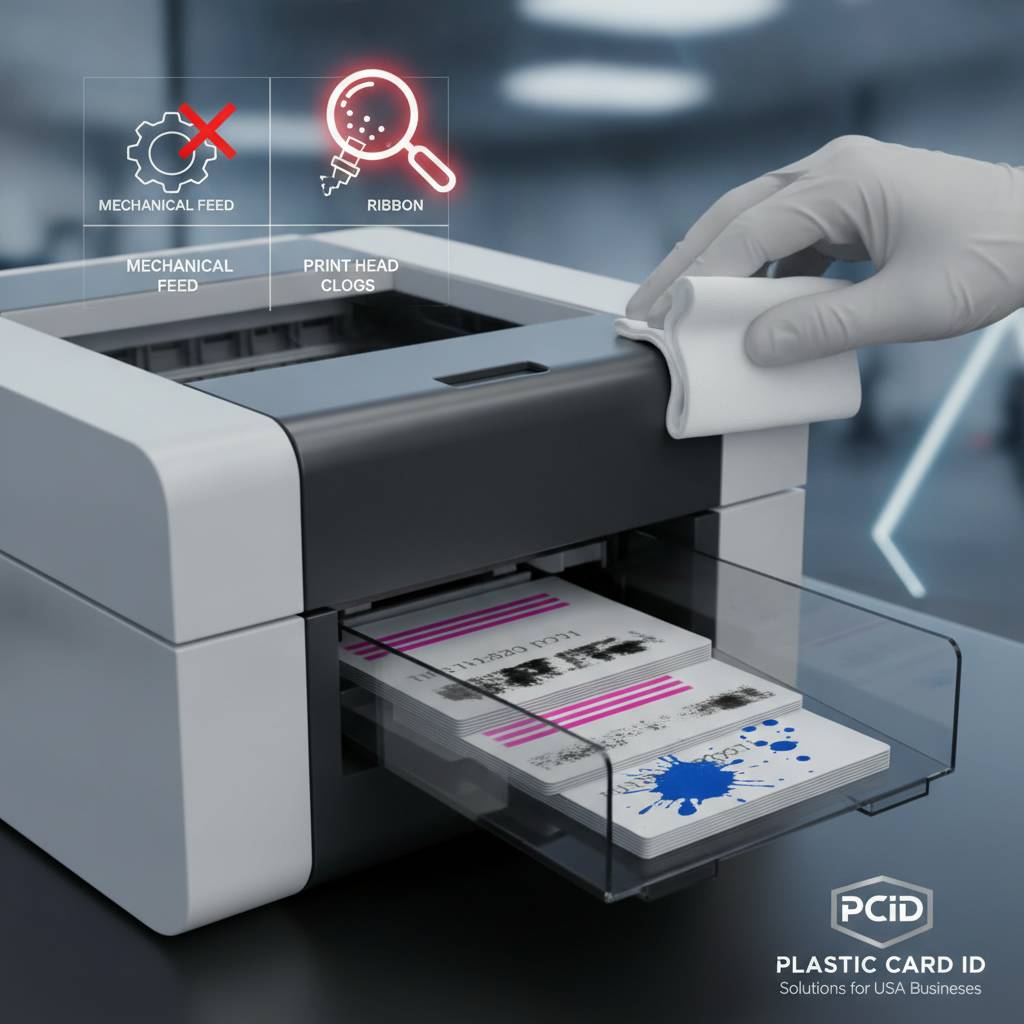 Print quality degradation is probably the single most reported card printer complaint - and it's almost never a mystery once you understand the mechanics. Your printhead is one of the most sensitive components in the machine, and it doesn't take much dust, debris, or chemical contamination to start producing visible artifacts on your cards. The moment you see horizontal streaking, uneven color saturation, or washed-out images, the investigation begins at the printhead and ribbon.
Environmental factors compound the issue. Low-volume print environments are especially susceptible because the printer sits idle between sessions, collecting dust on the printhead surface. Card stock that hasn't been stored properly can carry contamination. Ribbons that have exceeded their shelf life or been stored near humidity will produce inconsistent dye transfer. The fix is frequently simpler than people expect - but only if you act on the right component first.
Printhead Cleaning: The First Line of Defense
Every major card printer brand - Evolis, Fargo, Zebra, Matica - ships with a recommended cleaning interval tied to the number of cards printed. Most models prompt you automatically. Skipping cleaning cycles is the number one cause of premature printhead failure, and once a printhead is scored or burned, it's a costly replacement rather than a routine maintenance task.
Cleaning kits typically include pre-saturated cleaning cards and cotton swabs designed for the specific solvent tolerance of each printer model. Running a cleaning card takes under two minutes and can immediately restore print sharpness. Never substitute household cleaners - isopropyl concentrations, in particular, must be appropriate for the printhead material or you risk chemical damage that no cleaning cycle can reverse.
Ribbon Compatibility and Storage Issues
Using the wrong ribbon in your printer is a surprisingly common misstep, particularly when reordering supplies in bulk. YMCKO ribbons - the standard full-color format - are not universally interchangeable across brands or even across different models of the same brand. Evolis printers, for example, use cartridge-style ribbon cassettes that differ in yield and panel configuration from Fargo ribbons. Always verify ribbon compatibility by printer model, not just brand, before ordering.
Ribbon storage matters more than most operators realize. Exposure to direct sunlight, high humidity, or temperature swings can cause the dye panels to partially transfer before the ribbon ever loads into the printer. Store unused ribbons in sealed packaging in a cool, dry location. If a ribbon sat in a supply cabinet near a window through a hot summer, replace it regardless of how many cards remain on the spool.
Card Stock Quality and Its Impact on Output
Not all PVC cards are created equal. Variations in card thickness, surface finish, and manufacturing tolerances have a direct effect on print clarity. Most professional card printers are calibrated for CR-80 cards at 30 mil thickness - deviating from this spec, even slightly, can cause the card to pass too quickly or too slowly through the print zone, resulting in color banding or incomplete image transfer.
Textured or matte-finish cards require adjusted printer settings compared to standard glossy PVC. When switching card stock suppliers or card types, always run a test batch before committing to a full production run. Cards that feel or look different from your standard supply are almost always a contributing factor when print quality suddenly shifts without any other obvious change.
Card Jams and Feed Problems: When Cards Refuse to Cooperate
A card jam is rarely a random event. The mechanics of card feeding involve a precise interplay between roller tension, card thickness, hopper alignment, and surface cleanliness. When a card jams - or worse, jams repeatedly - you're dealing with a system that's out of tolerance somewhere. Chasing a jam without understanding the root cause means it will happen again within the next fifty cards.
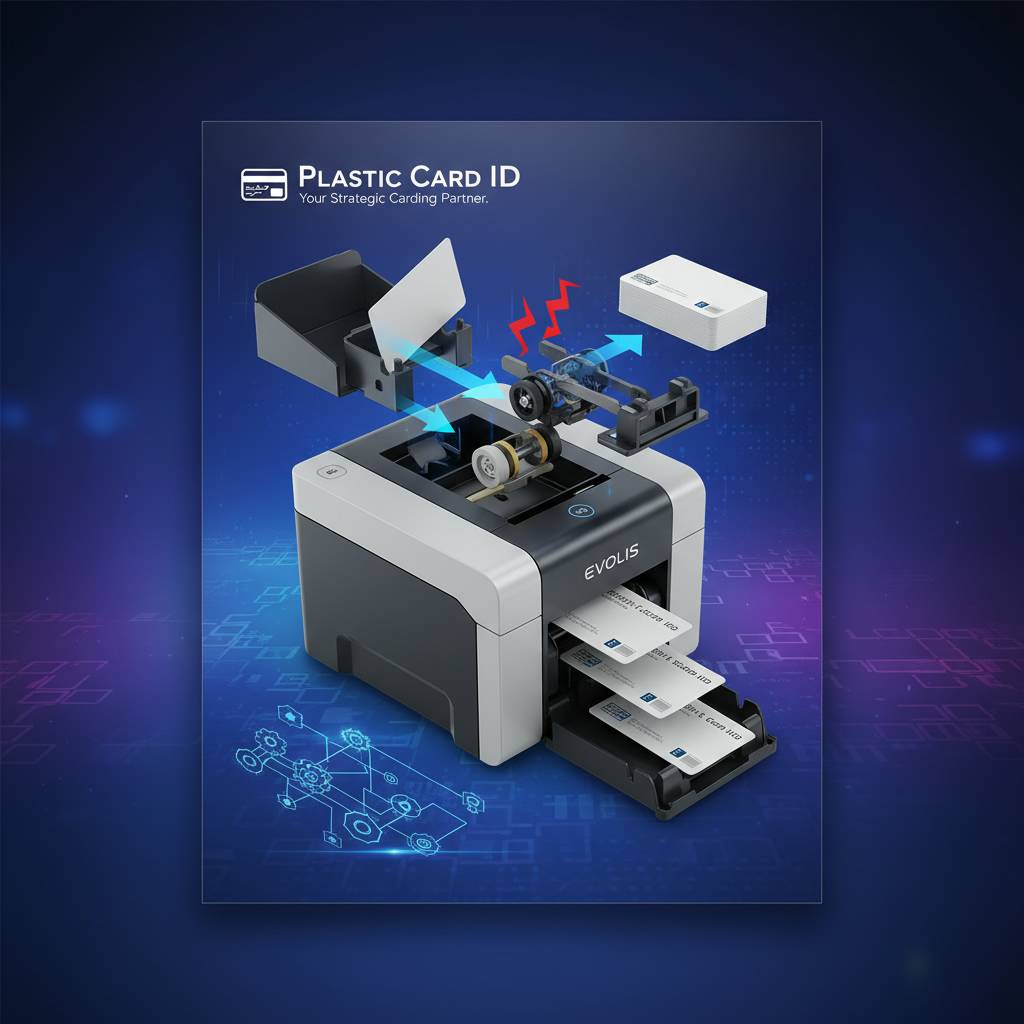
The good news is that most jam-related issues are mechanical and entirely serviceable without sending a printer in for depot repair. Patience and a methodical approach get you further than force. Never yank a jammed card; slow, deliberate reversal via the printer's manual eject function prevents damage to rollers and the card path surface.
Roller Contamination and Wear
The feed rollers in a card printer grip each card and advance it through the print zone with precise friction. When rollers accumulate card dust, adhesive transfer from improperly stored cards, or debris from the operating environment, that grip becomes inconsistent. A card that slips mid-feed causes misregistration; a card that stops entirely causes a full jam. Roller cleaning should be part of every scheduled maintenance cycle without exception.
Roller wear is a separate issue from contamination. Over tens of thousands of cycles, rubber rollers compress and harden, reducing their ability to generate consistent grip. If cleaning the rollers doesn't restore reliable feeding, measure how many cards have been processed through the printer. Most manufacturers publish roller replacement intervals - typically 10,000-25,000 cards depending on the model - and replacement rollers are a standard consumable available through CPE.
Card Thickness Mismatches
Desktop card printers are engineered around specific card thickness tolerances. Feeding a 20 mil card through a printer designed for 30 mil stock changes every mechanical calculation the printer makes - the pressure applied during printing, the timing of card advancement, the tension on the ribbon. Results range from poor print registration to outright jams to ribbon breaks caused by unexpected drag.
Always confirm that your card stock matches your printer's listed specifications before loading. If your organization uses multiple card types - standard ID cards, thicker clamshell proximity cards, or thinner temporary visitor badges - verify that your printer model supports multiple thickness settings and configure accordingly. Some Evolis and Fargo models include manual or automatic thickness adjustment; others do not.
Hopper and Card Carrier Issues
Input hopper alignment is frequently overlooked during troubleshooting. If the hopper isn't seated correctly, cards can feed at a slight angle, increasing the likelihood of a skewed jam. Overfilling the input hopper is another deceptively common cause of feed failures - most hoppers are rated for a specific maximum card count, and exceeding it increases friction on the bottom cards in the stack.
Card carriers and sleeves used for encoding-only passes through the printer must also be inspected periodically. Worn or creased card carriers can catch on printer internals at feed speed, pulling the mechanism out of alignment or depositing debris in the card path. Replace card carriers showing visible wear even if they haven't caused an obvious problem yet.
Ribbon Breaks and Encoder Failures: The Specialty Consumable Problems
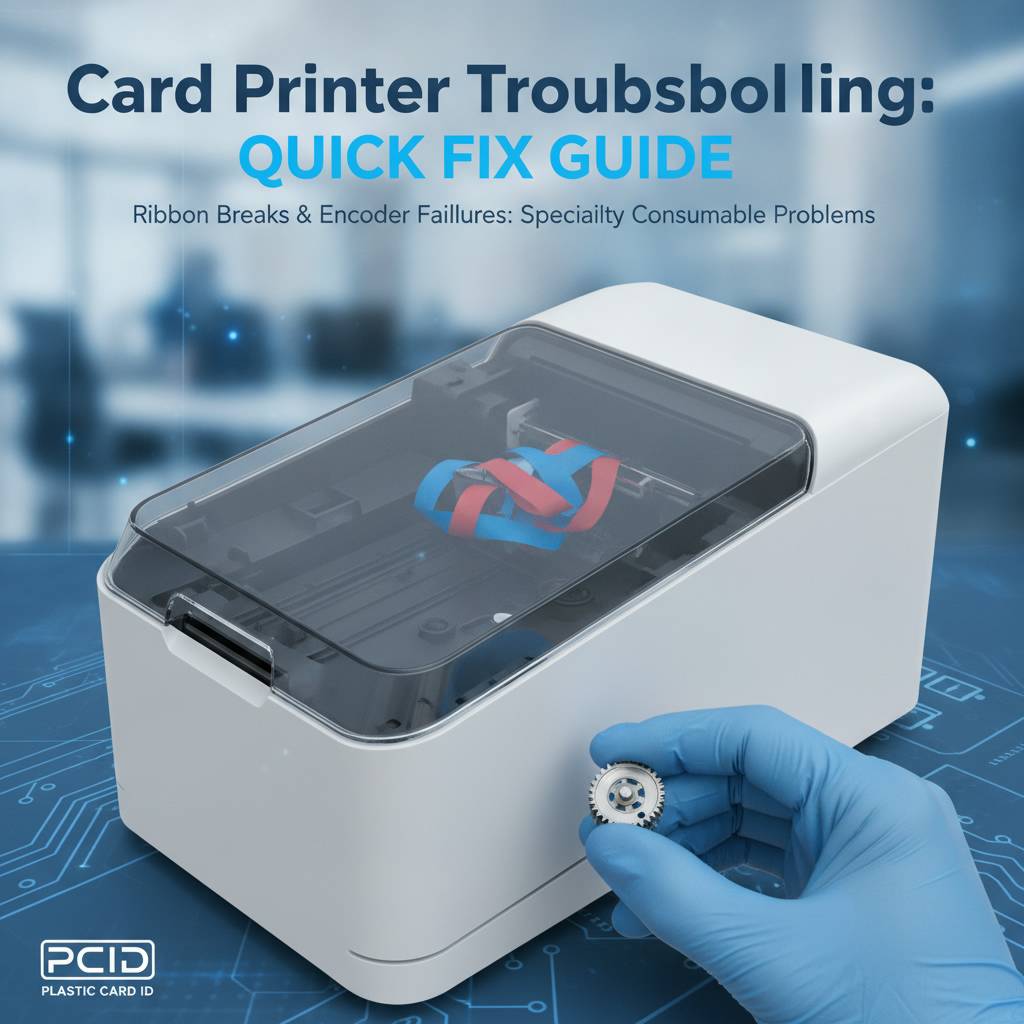 Ribbon breaks and encoding errors occupy a different troubleshooting space than print quality and jam issues - they're more likely to involve consumable condition, settings configuration, or module-level hardware than simple cleaning. A ribbon that breaks consistently at the same point in the print cycle is telling you something specific about either the ribbon itself or the mechanical interaction at that point in the card path.
Encoding failures, meanwhile, are often software-and-settings problems dressed up as hardware failures. Before assuming a magnetic stripe encoder or smart chip encoder is damaged, confirm that your software is configured correctly for the card type, track assignment, and data format you're using. A surprising number of "broken encoder" service calls resolve with a driver reinstall or a settings correction.
Diagnosing Ribbon Breaks
Ribbon breaks happen at points of mechanical stress: at the printhead if there's debris on the contact surface, at the ribbon spindle if tension is improperly set, or at the panel transition points if the ribbon is old or humidity-damaged. Mapping where in the card cycle the ribbon breaks helps narrow the cause dramatically. A break that happens consistently at card entry points to a different problem than one that happens mid-print.
When replacing a broken ribbon, inspect the ribbon path carefully for sharp edges, debris buildup, or any sign of mechanical interference before reloading. A foreign object as small as a card chip fragment or a dried adhesive residue can cut through a new ribbon within one print cycle. Confirm the ribbon cassette is fully seated and the spindle tension is within the manufacturer's specification before running a test card.
Magnetic Stripe Encoding Errors
Magnetic stripe encoding failure manifests either as cards that don't encode at all or as cards that encode incorrectly - wrong data, corrupted tracks, or encoding that reads back inconsistently. The most frequent culprits are track selection errors in the software driver, dirty encoding heads, or cards that aren't actually magnetic stripe cards despite looking the part.
Cleaning the magnetic stripe encoder head is a quick step often skipped during standard maintenance. Encoder heads accumulate magnetic particle residue from the card surface over time, reducing read/write fidelity. A dedicated encoder cleaning card run once every few hundred encoding operations maintains consistent performance. If encoding errors persist after cleaning and verifying software settings, contact Plastic Card ID at 800.835.7919 to assess whether the encoder module requires service or replacement.
Smart Chip and Contactless Encoding Challenges
Smart chip encoding introduces a layer of complexity beyond magnetic stripe because the data exchange is bidirectional and protocol-dependent. An encoding failure might originate in the card's chip firmware, the printer's encoding module, the middleware connecting your software to the encoder, or the data formatting itself. Isolating which layer is failing requires a systematic approach - and the right diagnostic tools.
Start with a known-good test card from a sealed batch to eliminate card-level faults. Then verify that your card design software is generating correct encoding commands for the chip type in use. Many smart card encoding issues trace back to middleware version mismatches after a Windows update or a software upgrade that changed the encoding command syntax. Keep your driver and software versions synchronized and documented so that post-update issues can be identified quickly.
Driver and Connectivity Problems: When the Computer Can't See the Printer
 A printer that powers on, loads cards correctly, and has a fresh ribbon installed - but simply won't respond to print commands from the computer - is a connectivity or driver problem. This category of issue frustrates users disproportionately because everything looks fine on the hardware side. The printer itself isn't broken; the communication path between software and hardware is broken, and that distinction matters for how you approach the fix.
Driver conflicts are more common than most IT professionals expect, especially in managed Windows environments where automatic updates can replace or corrupt print drivers without obvious notification. USB port failures, changed COM port assignments for serial connections, and network IP changes for networked printer models are all routine causes of sudden connectivity loss.
Driver Reinstallation Procedure
Before reinstalling a driver, fully remove the existing installation rather than simply overwriting it. Residual registry entries from a partial or corrupted driver installation will persist through an overwrite and continue causing problems. Use the manufacturer's uninstaller if one is provided - Evolis, Fargo, and Zebra all supply dedicated uninstall utilities with their driver packages that perform a cleaner removal than Windows' built-in uninstall process.
Download the latest driver version directly from the manufacturer's official website rather than from a third-party driver repository. Installing outdated or unofficial drivers is one of the fastest ways to create printer communication problems that are difficult to trace. After reinstalling, test with a basic print job before reintroducing your card design software to isolate whether any residual issue is driver-related or application-related.
USB, Network, and Port Configuration Issues
USB connections are straightforward but not infallible. USB hubs, particularly unpowered hubs, can fail to deliver sufficient power or data throughput for a card printer, causing intermittent disconnection errors. Always connect a card printer directly to a USB port on the host computer, not through a hub. If the printer connects and disconnects repeatedly, try a different USB cable - cable failures are more common than most people suspect and are the easiest fix to test.
For networked card printers, confirm that the printer's IP address hasn't changed due to a DHCP lease expiration. Assigning a static IP address to a networked card printer eliminates an entire category of connectivity problems by ensuring that the port configuration in your print driver always points to the correct device. Document the IP assignment in your network configuration records so it's protected from DHCP pool changes.
Operating System Compatibility Considerations
Major Windows version upgrades - particularly transitions to Windows 10 and Windows 11 - have historically broken card printer driver compatibility for a subset of older models. Before upgrading workstations that run card printers, verify that current drivers are available for your printer model on the new OS version. Some older Fargo and Zebra models require updated firmware on the printer itself in addition to a new driver to maintain full Windows 11 compatibility.
Mac and Linux environments present additional compatibility challenges since most card printer manufacturers prioritize Windows driver development. If your organization uses Mac workstations, confirm OS compatibility directly with the printer manufacturer before purchasing, and ensure that any card design software you plan to use is available and current on the Mac platform. CPE can advise on compatibility when you're evaluating printer models for a specific environment.
Lamination and Overlay Problems: Protecting Cards That Won't Stay Protected
Lamination and overlay application add durability and security to printed cards, but they introduce their own potential failure points. Bubbles, delamination, wrinkled edges, and incomplete coverage are all symptoms of a process that's slightly out of calibration - temperature, pressure, card surface condition, or overlay material quality. Each failure mode points to a different adjustment.
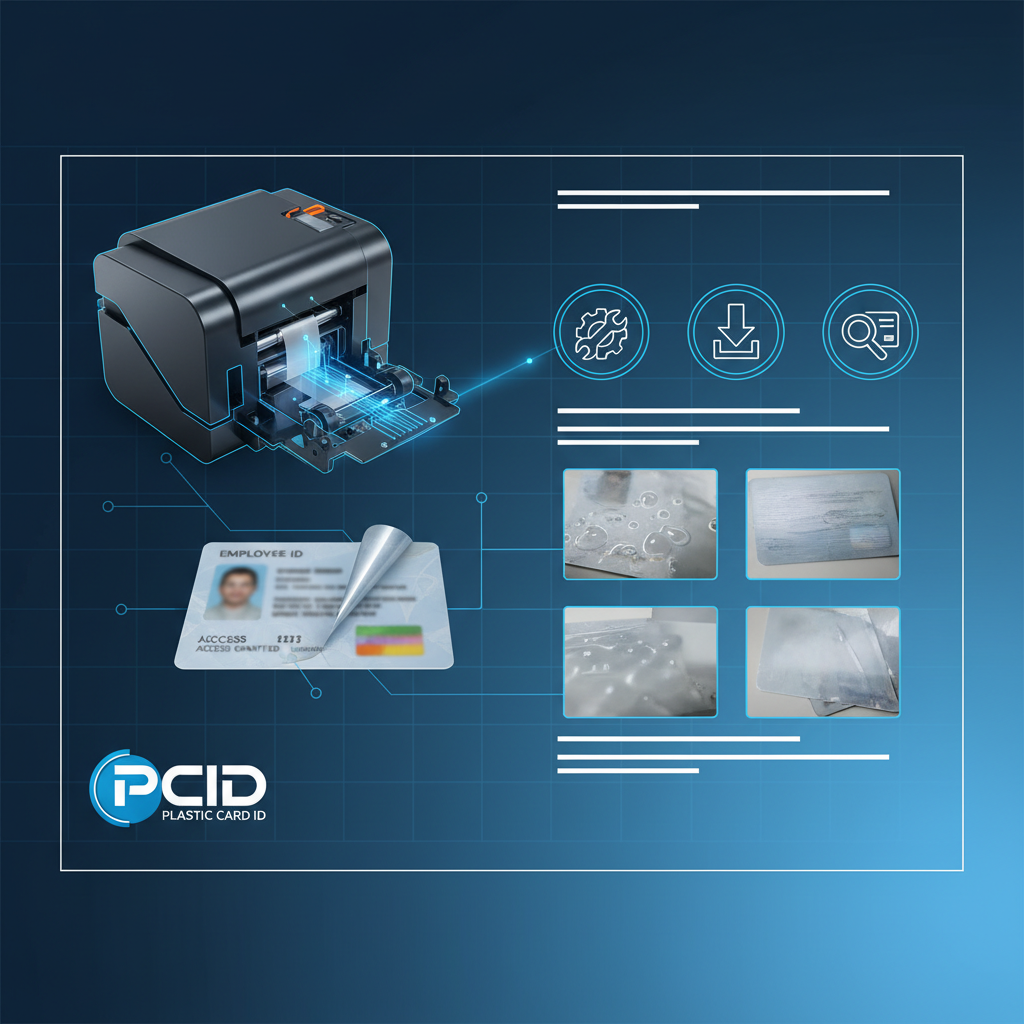
Cards that won't hold their laminate are a particular problem for high-use credentials like access control cards, student IDs, and employee badges that pass through hands and card readers dozens of times per day. Getting lamination right from the start saves replacement costs and the operational disruption of reissuing cards prematurely.
Temperature Calibration and Overlay Selection
Laminator temperature settings must match the specific overlay material in use. Different overlay types - standard gloss, matte finish, holographic security overlays - have different activation temperatures, and applying a security overlay at the temperature calibrated for standard gloss will produce incomplete bonding. Always consult the overlay material specification sheet when switching overlay types, even within the same brand's product line.
Temperature drift in older lamination modules is a real phenomenon that can cause gradual degradation in lamination quality even when settings haven't changed. If lamination quality has declined progressively over time without a change in materials or settings, the module's heating element may need calibration or replacement. This is a service-level intervention that goes beyond user-level adjustment.
Card Surface Preparation Before Lamination
The printed card surface must be clean, dry, and free of any residue before lamination. Fingerprints left on a card between printing and laminating are perhaps the most common cause of lamination bubbles - the oil from skin creates a barrier between the printed surface and the overlay adhesive. Handle cards by their edges during production, and implement a brief quality check step before cards enter the lamination module.
Cards that have been sitting in an output tray for an extended period in a humid environment can develop microscopic moisture condensation on the surface that prevents proper overlay adhesion. In high-humidity facilities, minimize the time between card printing and lamination, and consider a dehumidifier in the card printing area if lamination quality problems correlate with weather patterns or seasonal humidity changes.
Preventive Maintenance: Avoiding Problems Before They Start
 Most card printer problems are not spontaneous failures - they're the predictable result of skipped maintenance, improper supply storage, or operating conditions that gradually push the printer outside its performance envelope. A well-maintained card printer can run reliably for years beyond its rated service life; a neglected one will struggle to complete a production run without intervention well before that threshold.
Building a simple maintenance schedule eliminates the reactive scramble that disrupts operations. You don't need a dedicated IT team or a service contract to maintain a card printer well - you need the right supplies, a written schedule, and the discipline to follow it consistently.
Recommended Maintenance Schedule by Print Volume
- Every 100 cards printed: Run a cleaning card through the printer to maintain printhead and roller cleanliness.
- Every ribbon change: Inspect the ribbon path for debris and run a secondary cleaning card pass.
- Monthly (low-volume printers): Full cleaning kit service including printhead swab, roller wipe, and card path inspection.
- Every 1,000 cards (mid-volume printers): Complete cleaning cycle, encoder head cleaning if equipped, hopper realignment check.
- Every 5,000-10,000 cards: Roller wear inspection, printhead resistance check, firmware version verification.
- Annually: Full internal inspection, replacement of wear components approaching rated service intervals.
CPE stocks complete cleaning kits for Evolis, Fargo, Zebra, and Matica printers. Ordering a cleaning kit alongside your next ribbon order ensures you're never running a maintenance cycle with improvised materials that could damage your hardware.
Supply Storage Best Practices
Ribbons, cleaning cards, and lamination overlays degrade when stored improperly. Keep all printer consumables in their original sealed packaging until use, in a location that stays between 59-77 degrees Fahrenheit with relative humidity below 65%. Avoid storage near printers, copiers, or other heat-generating equipment - the ambient heat from operating machines can accelerate ribbon deterioration even through sealed packaging.
FIFO inventory management matters for printer consumables just as it does in food service. Use older stock before newer stock, and mark purchase dates on supply packages when they arrive. A YMCKO ribbon with a purchase date 18 months ago may still be within manufacturer shelf life, but it warrants careful inspection before loading into a production run.
When to Call for Professional Support
Some issues exceed what user-level troubleshooting can resolve: printhead replacement, roller replacement requiring partial disassembly, encoder module service, or firmware-level problems that don't respond to standard driver reinstallation. Recognizing the threshold between self-service and professional support saves time and prevents well-intentioned disassembly from creating new problems in a printer that needed a targeted repair.
If you've worked through the troubleshooting steps in this guide without resolving the issue, that's the signal to pick up the phone. Getting expert guidance early prevents small problems from escalating into major repairs. Plastic Card ID is available at 800.835.7919 to help diagnose stubborn issues and identify the right path forward - whether that's a replacement part, a new consumable, or a recommendation for service.
Get Your Card Program Back on Track With Plastic Card ID
 Card printer problems feel urgent because they are - a broken ID printer in an active workplace doesn't just inconvenience one person, it creates a ripple effect across access control, HR onboarding, event operations, or loyalty program enrollment. Speed matters when your card program is down, and so does having a supply partner who understands the hardware deeply enough to help you solve the problem on the first call.
Plastic Card ID has supported over 100,000 businesses across the United States with printers, ribbons, cleaning kits, encoding supplies, lamination modules, and the expertise to back all of it up. Whether you're running a single Evolis Badgy200 for a small nonprofit or managing a fleet of high-throughput Matica printers for a large enterprise, the troubleshooting principles are the same - and so is the commitment to keeping your program running without disruption.
Don't let a solvable problem turn into a costly delay. Reach out to the team at Plastic Card ID today at 800.835.7919. From ribbon selection to printhead maintenance to full printer replacement, CPE has everything your card program needs - in stock, ready to ship, and backed by decades of real-world expertise.
Previous Page